

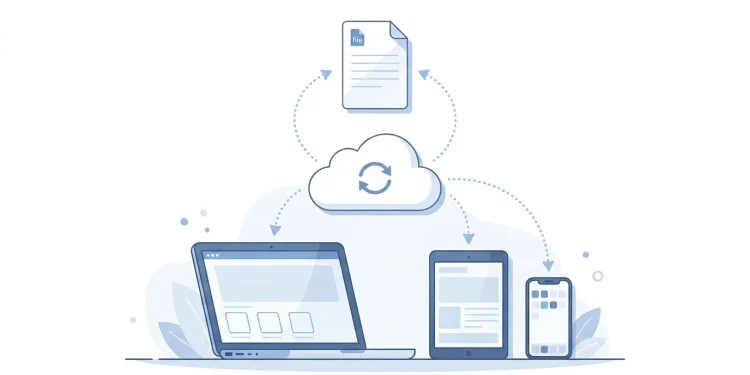
Cloud based productivity apps are work tools that run on remote servers instead of your own computer, so your documents, email, tasks, and files live online and open from any device you sign into. Google Docs, Microsoft 365, Dropbox, Slack, Notion, and Trello all fit the description. The practical difference from old desktop software: nothing is trapped on one machine, updates arrive automatically, and two people can work in the same file at the same time without emailing versions back and forth.
That’s the short answer. The rest of this guide covers how they actually work under the hood, where they genuinely help, the trade-offs vendors rarely advertise, and how to choose without ending up paying for nine subscriptions you forgot about.
What Makes an App “Cloud Based”?
The test is simple: where does the processing and storage happen? With traditional software, you installed a program on your hard drive, saved files to that same drive, and bought a new version every few years. With a cloud app, the heavy lifting happens on the provider’s servers, and your device mostly displays the result.
Three characteristics follow from that setup.
You access it over the internet. Usually through a browser, often through a companion mobile or desktop app that’s really a window into the same online service.
Your data lives on the provider’s servers. Your spreadsheet isn’t primarily on your laptop. It’s in a data center, synced down to whatever device you’re using.
You subscribe rather than own. Monthly or annual fees replace one-time purchases, which has real consequences covered later in this article.
A quick way to tell: if you can sign in on a borrowed laptop and find all your work exactly where you left it, the app is cloud based. If you’d need the original installer and your saved files on a flash drive, it isn’t.
What “Syncing” Actually Does
This is worth understanding, because most confusion about cloud apps traces back to it. When you edit a document, the change is sent to the server and then pushed out to every other device logged into your account. On a good connection, that happens in under a second.
Two situations break the illusion and surprise people:
- Two people editing the same thing offline. Both sets of changes reach the server later, and the app has to reconcile them. Modern editors like Google Docs merge simultaneous edits cleanly; file-sync tools like Dropbox often can’t, and create a “conflicted copy” instead.
- A device that’s been offline for days. It syncs a backlog on reconnect, and if someone else changed the same file meanwhile, you may get two versions.
Neither is a malfunction. It’s the cost of letting several devices edit one thing. Knowing it happens is half the fix — the other half is checking which version is newest before deleting anything.
The Main Types, With Examples You’ll Recognize
“Productivity app” covers a lot of ground. Most tools fall into one of these buckets, and most people end up using several.
| Category | What it does | Common examples |
|---|---|---|
| Office suites | Documents, spreadsheets, presentations | Google Workspace, Microsoft 365 |
| File storage and sync | Keeps files available across devices | Google Drive, Dropbox, OneDrive, iCloud Drive |
| Communication | Team chat, video calls, email | Slack, Microsoft Teams, Zoom, Gmail |
| Project and task management | Tracks who’s doing what by when | Asana, Trello, Monday.com, ClickUp |
| Notes and knowledge | Personal and team documentation | Notion, Evernote, Obsidian Sync, Apple Notes |
| Automation | Connects apps so actions trigger each other | Zapier, Make, Power Automate |
Market research puts cloud-based deployment at roughly 69–71% of the business productivity software market, with analysts reporting that a large majority of US enterprises now run cloud productivity platforms for daily workflows. Treat specific percentages as moving targets — vendor-funded market reports vary widely and get revised often — but the direction is not in dispute. The category now dominates how American businesses work.
Why People and Teams Actually Switch
Marketing pages list a dozen benefits. In practice, a handful do the real convincing.
Your Work Follows You
Start a proposal on your office desktop, review it on your phone during a commute, finish it on a laptop at home. No flash drives, no emailing files to yourself, no “I saved it on my work computer.” For anyone with more than one device — which is nearly everyone now — this alone justifies the switch.
Real-Time Collaboration Replaces Version Chaos
The old workflow produced files named proposal_FINAL_v3_JK_edits_USE THIS ONE.docx. Cloud documents have one canonical version that everyone edits, with a history you can roll back. Comments attach to specific lines. You can see who’s typing right now.
For distributed teams, this isn’t a convenience, it’s the whole foundation. Hybrid and remote work adoption is the single clearest driver analysts point to behind sustained demand for collaboration platforms.
Automatic Backups and Version History
Laptops get stolen, dropped, and fried by coffee. With cloud apps, the device is replaceable and the work isn’t. Most services also keep a version history for 30 days or longer, so an accidental deletion or a bad edit is a right-click away from recovery.
This is genuinely better than what most people’s backup habits ever achieved on their own. It’s not a complete backup strategy — more on that below — but it covers the most common disaster.
No More Manual Updates
Security patches and new features arrive without you doing anything. For small businesses with no IT staff, that removes a real maintenance burden and closes vulnerability windows that used to stay open for months.
Lower Upfront Cost, Easier Scaling
A new hire needs a login, not a software license disc and an install appointment. Adding or removing seats takes a minute. For a business that grows or shrinks, the flexibility is worth money.
AI Features Arrive Built In
Most major suites now ship assistants that draft, summarize, and analyze inside the apps themselves, and new capabilities are being pushed to business users on a steady cadence. You don’t install anything; the feature just appears. Whether these features are worth the premium pricing tiers vendors attach to them is a separate question worth testing before committing.
The Trade-Offs Nobody Puts on the Pricing Page
A useful guide has to cover what you give up. None of these are reasons to avoid cloud tools, but all of them deserve a plan.
Internet Dependence Is Real, Though Smaller Than It Was
Most major apps now offer offline modes — Google Docs, Microsoft 365, and Dropbox all let you work on cached files and sync when you reconnect. But offline mode usually has to be enabled in advance, and it typically covers a limited set of recent files.
Practical move: before a flight or a trip to anywhere with shaky connectivity, turn on offline access and open the specific files you’ll need. Discovering the limitation at 30,000 feet is the common version of this lesson.
Subscriptions Cost More Over Time
The math is straightforward and often ignored. A one-time software purchase might run $150. A $12-per-month subscription passes that in about a year and keeps going. For one person, it’s the price of a sandwich a month. For a 20-person team across five tools, it’s a serious line item.
Worth knowing: industry reports have estimated that a substantial share of corporate SaaS spending goes to waste on unused licenses and forgotten subscriptions. Figures in that area circulate widely and come from vendor-adjacent research, so treat the exact number cautiously — but the underlying problem is real and easy to verify in your own billing statements.
Your Data Sits on Someone Else’s Servers
You’re trusting a provider with your work. Major vendors generally have far stronger security than a typical small business could build, but outages happen, accounts get locked, and terms of service change. For regulated fields — healthcare, finance, law — compliance requirements may dictate specific configurations or vendors, and that’s a conversation for a qualified compliance advisor rather than a blog post.
Vendor Lock-In Creeps Up
The longer you stay, the more painful leaving becomes. Not just files, but your folder structures, shared links, integrations, and team habits. Before standardizing on anything, check whether it exports your data in formats other tools can read. A platform that only exports to its own format is a flag.
App Sprawl Is the Underrated Problem
This is the one beginners never see coming. You add a chat app, then a task board, then a notes tool, then a scheduling app. Six months later, information is scattered across five places and nobody knows where anything lives. Enterprises routinely run well over a hundred SaaS applications; small teams hit their own version of the same mess at a much smaller scale.
Fewer tools used properly beat more tools used halfway. Almost always.
How to Choose Without Overbuying
A sane selection process, in order:
- Write down the actual problem. “We lose track of client deadlines” points somewhere specific. “We need to be more productive” points nowhere, and vague goals are how people end up with three overlapping subscriptions.
- Check what you already pay for. Microsoft 365 includes Teams, OneDrive, and a task tool. Google Workspace includes Drive, Meet, and Chat. Many businesses buy a separate app for something their existing suite already covers.
- Pick your ecosystem first, then fill gaps. Tools inside one suite integrate better than a pile of best-in-class apps from six vendors. Start with the suite that matches your devices and existing files.
- Run a real trial with real work. Free trials tested with fake data tell you nothing. Move one live project into the tool for two weeks with the people who’ll actually use it.
- Confirm the exit before you enter. Can you export everything? In what format? Five minutes of checking now saves a migration nightmare later.
- Put a renewal reminder on the calendar. Annual plans auto-renew quietly. A calendar note 30 days out is the cheapest money-saving habit available.
A Small-Business Example
Say a four-person design studio is drowning in email attachments and missed deadlines. A reasonable stack: Google Workspace or Microsoft 365 for email, documents, and storage (one subscription, covers most needs), plus one project tool like Trello or Asana for job tracking. That’s two subscriptions, roughly $25–35 per person per month depending on tiers, and it solves both stated problems.
What they don’t need on day one: a separate chat app, a separate notes app, a CRM, and an automation platform. Add those only when a specific pain appears that the existing two tools can’t handle. Check current pricing directly with each vendor, since plans and tiers change frequently.
Security Habits That Matter More Than the App You Pick
Most cloud productivity incidents trace back to account access, not to the provider being breached. Four habits cover the majority of the risk:
- Turn on two-factor authentication everywhere, ideally with an authenticator app rather than SMS. The federal Cybersecurity and Infrastructure Security Agency publishes plain-language guidance on this for small organizations.
- Audit sharing links periodically. “Anyone with the link can edit” is convenient and ages badly. Review shared folders quarterly.
- Keep a separate backup of anything critical. Cloud sync is not a backup — delete a file and the deletion syncs too. Version history helps, but a genuine offsite copy of irreplaceable work is cheap insurance.
- Remove departed team members immediately. Orphaned accounts with live access are a common weak point in small businesses.
The Bottom Line
Cloud based productivity apps earn their place for one core reason: they separate your work from any single machine, which makes collaboration, device-switching, and recovery from hardware disasters dramatically easier than the install-and-save-locally era ever allowed. The costs are ongoing subscriptions, an internet dependency that still bites at inconvenient moments, and a strong tendency to multiply into more tools than anyone needs.
The sensible approach is restrained rather than enthusiastic. Choose one ecosystem, add individual tools only when a real problem demands them, enable offline access before you need it, and set a calendar reminder to review what you’re paying for twice a year. Start by listing every subscription you currently have — most people find at least one they’d forgotten about entirely.
FAQ
Are cloud based productivity apps safe for business data?
Major providers typically offer stronger security infrastructure than a small business could build alone, but safety depends heavily on your own practices — strong authentication, careful sharing permissions, and prompt removal of former employees’ access. Regulated industries should confirm specific compliance requirements with a qualified advisor.
Can I use these apps without internet access?
Partially. Most major suites offer offline modes that let you work on recently opened files and sync changes when you reconnect, but these usually must be enabled in advance and cover a limited set of files. Features like real-time collaboration and search across everything need a connection.
What’s the difference between cloud storage and a cloud productivity app?
Cloud storage (like Dropbox or Google Drive) holds your files. A cloud productivity app lets you create and edit work inside the service itself. Many products do both, which is why the line blurs — Google Drive stores files, while Google Docs edits them.
Is cloud software cheaper than buying desktop software?
Cheaper upfront, usually more expensive over several years. Subscriptions win when you need multiple devices, frequent updates, collaboration, or the ability to add and remove users. A one-time purchase can still make sense for a single user with stable, simple needs.
Do I lose my files if I cancel a subscription?
Access generally ends, though providers typically give a grace period to download your data. Export anything important before canceling, and verify in advance that the service offers exports in standard formats other tools can open.