

Over time, computers collect temporary files, unnecessary data, cached information, and leftover files from installed applications. These files can take up valuable storage space and make system maintenance more difficult. Although modern computers are designed to manage many background processes automatically, regular cleaning can help users maintain an organized and efficient system.
Whether someone uses a computer for gaming, office work, browsing, or entertainment, keeping the system clean is an important part of basic PC maintenance. Understanding how different cleaning tools work can help users manage storage, reduce unnecessary clutter, and maintain a smoother computing experience.
Why a PC Cleaner Is Important
A computer stores different types of files during everyday use. Browsers create cache files, applications generate temporary data, and software installations may leave behind unnecessary files. Individually, these files may seem insignificant, but they can gradually occupy considerable storage space.
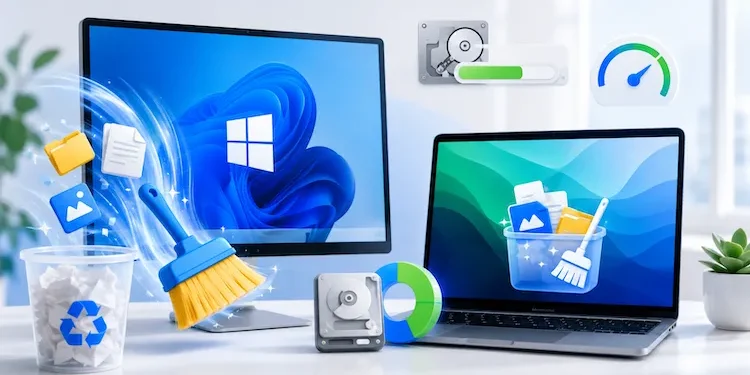
A PC cleaner helps users identify and remove unnecessary files from their computers. Depending on the software, it may clean temporary files, browser caches, application leftovers, and other unwanted data. This makes it easier to maintain available storage and keep the system organized.
Regular cleaning is particularly useful for computers with limited storage capacity. When the system drive becomes nearly full, users may experience difficulties installing updates, downloading applications, or saving important documents. Removing unnecessary files can create additional room for essential activities.
However, users should always review cleaning options before deleting anything. Important documents, personal files, and application data should never be removed without understanding their purpose. Choosing reliable cleaning software and avoiding aggressive cleanup settings can help prevent accidental data loss.
Manage Memory With a RAM Cleaner Windows 11
RAM plays an important role in computer performance. It temporarily stores information that applications need while running. When multiple programs are open simultaneously, they can consume a significant amount of available memory.
A ram cleaner Windows 11 tool is designed to help users monitor or manage memory usage. Some tools identify applications consuming large amounts of RAM, while others attempt to release memory that is no longer needed.
For example, someone working with several browser tabs, editing software, and background applications may notice that their computer becomes less responsive. Checking memory usage through Windows Task Manager can help identify which programs are consuming the most resources.
It is important to understand that Windows 11 already manages memory automatically. Unused RAM is often used for caching to improve system responsiveness, so seeing high memory usage does not automatically mean there is a problem. Third-party RAM cleaning applications are not always necessary and may sometimes interfere with normal memory management.
Instead of constantly clearing RAM, users should close applications they are not using, disable unnecessary startup programs, and consider upgrading memory if their computer regularly runs out of available RAM. These steps can provide more practical improvements.
Free Up Storage With a Disk Cleaner
Storage management is another important part of maintaining a computer. Temporary installation files, update leftovers, recycle bin contents, and cached data can gradually consume valuable disk space.
A disk cleaner helps users find and remove unnecessary files from storage devices. Cleaning tools may offer options to remove temporary files, clear old system data, and organize available disk space.
Windows 11 includes built-in storage management features that make this process straightforward. Storage settings allow users to review which categories are taking up space. Storage Sense can also automatically remove certain unnecessary files according to selected settings.
Before performing a cleanup, users should check which files are selected for deletion. Items in the Downloads folder, for example, may include documents or installers that they still need. Reviewing these locations carefully can prevent the loss of important information.
Regular disk cleaning can be especially helpful when installing large applications, downloading games, or updating Windows. Maintaining sufficient free space gives the operating system room to complete important tasks.
Build a Simple PC Maintenance Routine
Using cleaning tools effectively requires a balanced approach. Removing unnecessary files, monitoring memory usage, and managing storage can help users maintain their computers without making unnecessary changes.
A practical maintenance routine can include checking storage space regularly, uninstalling unused applications, reviewing startup programs, and installing trusted Windows updates. Users should also keep important files backed up before performing major cleanup operations.
It is equally important to avoid unfamiliar cleaning applications that promise unrealistic performance improvements. Reliable tools should clearly explain what they remove and allow users to review cleanup options before making changes.
Conclusion
Keeping a computer clean is an essential part of long-term system maintenance. A PC cleaner can help remove unnecessary files, a ram cleaner Windows 11 tool can provide insight into memory usage, and a disk cleaner can help recover valuable storage space. By combining these tools with Windows’ built-in maintenance features and sensible computing habits, users can keep their systems organized, manage resources effectively, and enjoy a more reliable PC experience.