


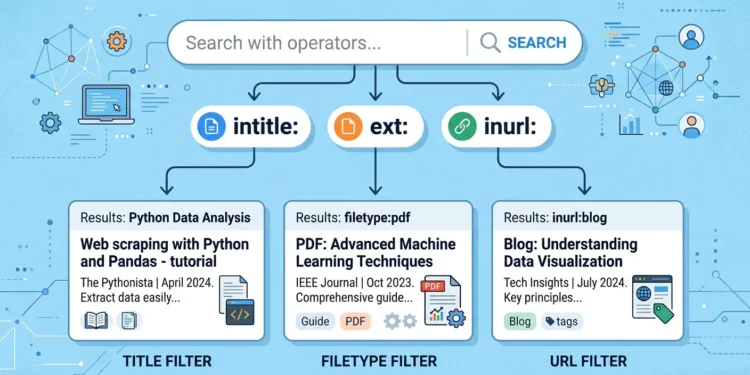
Google’s search box does far more than match keywords. A small set of commands called search operators lets you tell Google exactly where to look — in a page’s title, in its file type, inside its URL. Two of the most useful are intitle: (find a word in the page title) and ext: (find a specific file extension, like PDF or DOCX). Combine them and you can run precise searches that a plain query can’t: “show me PDFs about a topic,” or “find pages with this exact word in the title.”
This guide explains what these operators do, how to combine them for research and SEO work, and — because the same commands have a security side — how to make sure your own website isn’t exposing things it shouldn’t. Everything here uses publicly documented Google features and keeps to legitimate, authorized use.
What Are Google Search Operators?
Search operators are short commands you add to a normal search to filter results. You type them right in the search box, usually as operator:value with no space after the colon. Google supports a documented set, and a few unofficial ones that still work in practice.
The ones this guide focuses on:
| Operator | What it does | Plain example |
|---|---|---|
intitle: | Word must appear in the page’s title | intitle:resume |
allintitle: | All following words must be in the title | allintitle:marketing report 2026 |
ext: / filetype: | Match a file extension | ext:pdf or filetype:pdf |
inurl: | Word must appear in the page’s URL | inurl:blog |
site: | Limit results to one site or domain | site:wikipedia.org |
ext: and filetype: do the same job; Google treats them as interchangeable. The rest each filter a different part of a result. The real power shows up when you stack them, which we’ll get to.
A quick note on reliability: these operators are useful but not perfectly precise. Google has quietly changed how some behave over the years, and results can differ by region and over time. Treat them as strong filters, not exact database queries.
Using intitle: to Search Inside Page Titles
The page title is the headline shown in a browser tab and, usually, as the blue clickable link in search results. When a word sits in the title, it’s a strong signal the page is genuinely about that word, not just mentioning it in passing.
intitle:budgeting returns pages with “budgeting” in the title — more focused than a plain search for budgeting, which includes pages that use the word once in the footer.
Where this earns its keep:
- Content research.
intitle:"email marketing" site:hubspot.comfinds how one site titles its pieces on a topic — handy for seeing what angles a competitor publishes. - Finding specific document types.
intitle:"case study"surfaces pages built as case studies rather than blog posts that mention the phrase. - Auditing your own titles. Run
intitle:yourbrand site:yourdomain.comto see which of your pages put your brand in the title.
Use allintitle: when every word matters. allintitle:annual report nonprofit insists all three words appear in the title. The trade-off is that allintitle: is stricter and sometimes drops results you’d want, so many people start with intitle: and tighten from there.
Quoting phrases inside intitle:
Wrap a multi-word phrase in quotes to keep it together: intitle:"remote work policy" looks for that exact phrase in the title, while intitle:remote work policy only requires “remote” in the title and treats the rest as ordinary search terms. That distinction trips up a lot of people.
Using ext: to Find Specific File Types
ext: filters by file extension, which is the fastest way to find documents rather than web pages. Researchers lean on it constantly.
ext:pdf climate report 2025→ PDF reports, not news articles about themfiletype:xlsx budget template→ spreadsheet templates you can actually openext:ppt site:stanford.edu→ slide decks published on one university domain
Common extensions worth knowing: pdf, doc/docx, xls/xlsx, ppt/pptx, csv, txt. You can also target web-page extensions like html, php, asp, or aspx, which describe the technology a page runs on rather than a downloadable document.
A practical SEO use: ext:pdf site:yourdomain.com lists every PDF Google has indexed from your site. That’s a quick way to catch old brochures or price sheets you forgot were public.
Combining Operators: Where the Real Precision Comes From
Operators stack. Each one you add narrows the results further, which is how you go from thousands of pages to a handful of exactly-right ones.
Legitimate combinations that are genuinely useful:
site:+ext:—site:gov ext:pdf voter guidefinds official PDF guides on government domains. Great for sourcing authoritative material.intitle:+site:—intitle:pricing site:competitor.comjumps straight to a competitor’s pricing page for research.inurl:+intitle:—inurl:blog intitle:"link building"finds blog-section pages titled around a topic, useful for outreach prospecting.site:+intitle:, run on your own domain — the single best way to audit what you’ve published and how it’s titled.
inurl: deserves a word on its own. It matches text inside the URL, which is useful because URLs often reveal a page’s role — inurl:login, inurl:cart, inurl:category. For your own site, inurl: is an easy content inventory tool. The caution comes when it’s pointed at other people’s sites to find sensitive page types, which is where this topic crosses into security.
Decoding a query like ext:asp intitle:keyword
You’ll see strings like ext:asp intitle:keyword floating around operator tutorials and keyword tools, so it’s worth explaining plainly what one actually means. Read literally, it asks Google for pages that (a) run on classic ASP (.asp) and (b) have a chosen word in their title. By itself, that’s just a filter.
In practice, though, these specific ext:asp combinations come from “Google dorking” — using operators to locate pages with particular technical characteristics. Classic ASP is old technology, and strings that pair ext:asp with URL-parameter filters (for example, something that looks for a quantity parameter in a shopping-cart URL) are catalogued in security circles as ways to find pages that might be poorly maintained or vulnerable. That’s the honest reason those exact strings have “search demand”: they’re reconnaissance patterns, not SEO phrases.
Knowing that changes how you should use the knowledge. The useful, lawful takeaway isn’t “go find weak sites” — it’s “make sure these searches don’t find mine.”
The Security Side: Google Dorking, Explained Responsibly
The same operators that help you find a research PDF can be chained to find things website owners never meant to expose — indexed admin pages, backup files, spreadsheets with contact lists, log files. Security people call this “Google dorking” or “Google hacking,” and it works because Google indexes whatever it can reach, including files a site left publicly linked by accident.
Two things are true at once, and both matter:
- Finding something in public search results isn’t the same as being allowed to access or test it. Probing, logging into, or attacking a site you don’t own or have written permission to test can break the law. In the US, unauthorized access to a computer system can fall under the Computer Fraud and Abuse Act; other countries have equivalents. “It was in Google” is not a defense.
- The defensive use is completely legitimate and genuinely valuable. Running these searches against your own domain to see what’s exposed is exactly what a responsible site owner should do.
If you want to go deeper on the security context, the better sources are authoritative ones such as official Google Search documentation on search operators, the OWASP project’s guidance on web application security, and the CISA advisories on common web exposures — rather than the dork-list sites that just hand out attack strings.
How to Check (and Reduce) Your Own Site’s Exposure
This is the part worth acting on. A short self-audit using the operators above:
- See everything Google has indexed from you. Search
site:yourdomain.com. Skim for pages or files you didn’t expect to be public. - Hunt for stray documents.
site:yourdomain.com ext:pdf, then repeat withxlsx,csv,docx,txt. Spreadsheets and text files are where sensitive data leaks most often. - Look for exposed page types.
site:yourdomain.com inurl:adminorinurl:loginshows whether sensitive sections are indexed. They usually shouldn’t be. - Fix what you find. Move sensitive files behind authentication, remove ones that shouldn’t be public, and use
robots.txtplus proper access controls so they’re not crawled. To pull something out of results quickly, use the removal tools in Google Search Console, which is the official, owner-verified way to request de-indexing. - Re-check periodically. New exposures appear as sites grow. A quarterly
site:sweep catches most of them.
For anything beyond a basic self-check — a real penetration test, a security review of a web application — bring in a qualified security professional and make sure any testing is authorized in writing. That’s the line between a safe audit and a legal problem.
Common Mistakes People Make With These Operators
- Adding a space after the colon.
intitle: resumeoften breaks the filter; writeintitle:resume. - Forgetting quotes on phrases. Without quotes, only the first word is tied to the operator.
- Expecting perfect accuracy. Operators are strong hints, not guarantees; Google’s behavior shifts over time and some unofficial operators get dropped without notice.
- Confusing
ext:with content.ext:asptells you the page’s technology, not that it’s relevant to your topic — pair it with a topic word if relevance matters. - Treating “found in Google” as permission. The single most important mistake, and the one with legal weight.
The Bottom Line
intitle: and ext:, alongside inurl: and site:, turn Google from a keyword matcher into a precise research tool — finding the right file type, the right page title, the right document on the right domain in one query. For most people that’s where the value lives: faster research, cleaner competitive analysis, and a quick way to see what your own site has published.
The same commands carry a security dimension, and the responsible move is to point them inward. Spend ten minutes running site:, ext:, and inurl: against your own domain, clean up anything exposed, and bring in a professional for real testing. Used that way, these operators make you harder to exploit instead of helping anyone exploit others.
FAQ
What’s the difference between ext: and filetype:?
Nothing meaningful — Google treats them as the same operator. filetype:pdf and ext:pdf return the same kind of results. Use whichever you remember.
Does intitle: search the whole page or just the title?
Just the title — the text shown in the browser tab and usually as the headline in search results. To require a word anywhere on the page, use a normal search; to require it in the URL, use inurl:.
Is using Google search operators legal?
Yes. The operators are a documented, public feature, and searching with them is fine. What can cross a legal line is acting on what you find — accessing, testing, or attacking a site you don’t own or aren’t authorized to test.
Why do some operator strings mention .asp pages specifically?
Classic ASP is older web technology, so strings targeting ext:asp are often used in security reconnaissance to find potentially outdated or vulnerable pages. For site owners, the useful response is to check whether your own ASP pages are exposed, not to search others’.
How do I remove a sensitive file from Google results?
Verify your site in Google Search Console and use its removal tools, then secure the file itself (authentication or deletion) so it isn’t re-indexed. Removing it from search without securing it leaves it reachable by direct link.